Image via Wikipedia
Follow these tips and you will definitely have a much faster and more reliable PC!
the basic in these tips is to lower your ram process and you get your system faster than the normal
1. Wallpapers: They slow your whole system down, so if you're willing to compromise, have a basic plain one instead! that means try keeping the wallpaper of lower size it should not much big as 1mb if it is such big it allocates much ram and slower your pc
2. Drivers: Update your hardware drivers as frequently as possible. New drivers tend to increase system speed especially in the case of graphics cards, their drivers are updated by the manufacturer very frequently! try taking the new updated driver from official websites of nvidia and ati raiden also updated drivers are free for both the company
3. Minimizing: If you want to use several programs at the same time then minimize those you are not using. This helps reduce the overload on RAM. also try closing unrequired tabs in internet explorer , mozilla firefox , google chrome etc also disable the plugins and toolbar which you are not using its saves more ram
4. Boot Faster: The 'starting Windows it is also for other operating systems (all operating system)' message on startup can delay your booting for a couple of seconds. To get rid of this message go to c:\ and find the file Msdos.sys. Remove the Read-Only option. Next, open it in Notepad or any other text editor. Finally, go to the text 'Options' within the file and make the following changes: Add BootDelay=0. To make your booting even faster, set add Logo=0 to remove the Windows logo at startup.
5. Restart only Windows: When restarting your PC, hold down Shift to only restart Windows rather than the whole system which will only take a fraction of the time.
6. Turn Off Animations: Go to Display Settings from the Control Panel and switch to the Effects Tab. Now turn off Show Windows Content While Dragging and Smooth Edges on Screen Fonts. This tip is also helpful with Windows XP because of the various fade/scroll effects.
7. Faster Start-Menu Access: Go to the Start menu and select Run. Now type Regedit and hit Enter. The Registry Editor will appear on the screen. Now, open the folder HKEY_CURRENT_USER\Control Panel\Desktop. You should see a MenuShowDelay value. If you don't then do the following: right click on a blank space in the right pane and select New\String. Change the name in the new value to MenuShowDelay. Now that we have the MenuShowDelay value, double click on it and enter 0 in the value data field. This sets the start menu delay to 0 milliseconds.
8. Resolutions: If you are willing to do anything for faster performance from your PC, then try lowering your display resolution. The lower it is, the faster your PC.
9. Turn off Active Desktop: Go to your Display Properties and switch to the Web tab. Uncheck View My Active Desktop As a Web Page. Since the Active Desktop option under Windows uses a lot of system resources, this option can have a dramatic effect on the speed of the whole system.
10. Defragment Often: all windows Windows Defrag tool uses Application Acceleration from Intel which means that when you defragment your drive, data is physically arranged on the drive so that applications will load faster.
in all windows you may get it in accessories (accessories=>system tools in vista)
11. Take your PC to Bed: Using the Advanced Power Management feature under Windows gives you the option to use the sleep command. That way, you can send your PC to sleep instead of shutting it down and then restarting it. It's as simple as pressing a button and then pressing the same button to wake it up. You can tell Windows after how many minutes/hours of inactivity to automatically sleep the machine in the Advanced Power Management section of the Control Panel.
12. Faster Internet Access: If you use the internet for reference and the sites you visit are rarely updated then try the following. In IE (the same can be done in Netscape) go to Tools, Internet Options. Next, click on Settings... in the Temporary Internet Files section. Finally, select Never for the first option and double the amount of storage space to use, click OK!
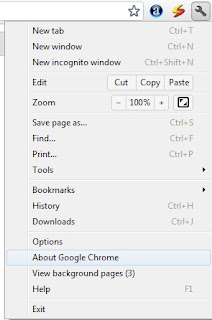
if in google chrome then click on the spaner button in the right upper corner (right to address bar ) then click on option then go in under the hood tab and then click on clear browsing data
13. Benchmarking: Benchmarking can be very useful when run frequently. It can tell you how your PC's components are performing and then compare them to other machines like yours. For example, when you overclock your PC, you want to know how much more speed you have and whether it is stable. All this and more can be discovered using benchmarking. An excellent piece of software for doing this job is SiSoft Sandra which can be found in the Downloads File Archive!
14. Refresh the Taskbar without restarting: If you in some way change the taskbar, either in Regedit or elsewhere, you can refresh the task bar without restarting. Hold down Ctrl Alt Del, and double click on Explorer. Say Yes to close Explorer, but no to closing Windows. This will refresh the Taskbar and system tray.
15. Quick CD Eject: Instead of pushing the button on your drive, right-click your CD drive letter in My Computer and click on Eject. This will also remove any icons that have become associated with the CD drive.
16. Start Up Programs: Windows can be slowed down when programs run on start up. To eliminate this, check your Start up folder. You can access it from the start menu: Start, Programs, Start Up. Another way to eliminate programs from loading even before Windows actually starts is by doing the following: Click on Start, then Run. Type msconfig. It will take quite a long time for this program to load, but when you finally see it on your screen, explore the different tabs. They all have to do with how quickly your PC boots, so select what you want, and uncheck what you don't want!
17. Fonts: When Windows starts, it loads every single font in the Fonts folder. Therefore, the more fonts you have, the slower the booting process. To get rid of unwanted fonts, simply go to the Fonts folder under c:\windows and remove whatever you don't want. Fonts that have a red letter 'A' as their icon are system fonts, so don't delete them.
18. Stretching Wallpapers: Don't "stretch" your wallpaper in Windows since it actually slows Windows down when you drag icons around on the desktop.
19. RAM Matters: If you have less than 32MB then you should seriously think of upgrading it to at least 64MB. Windows runs much more smoothly with 64MB or higher and tends to use less hard disk space for virtual memory.
20. Partitioning: A very nice little thing you can do to boost system performance. By partitioning your hard drive, splitting one physical drive into several logical ones, you can gain several advantages. 1. If you get a virus or you accidentally format a drive, not all will be lost. 2. By placing the swap file (Win386.swp) on a separate drive, The swap file will be less fragmented and thus, faster. 3. Place Windows on a separate drive and whenever you need to reinstall it, you rest assured that your data is safe on a separate drive. Partitioning can be done using a few programs such as FDisk which comes with DOS. However, FDisk formats everything on the hard disk before partitioning. Alternatively, you can use Partition Magic from Power Quest to partition your hard disk without losing your data.